Volume 1 of Tips and Tricks for Using iMotions Lab kicks off a new series of practical shortcuts and lesser-known features. This edition covers smarter ways to manage your stimuli and structure your experiment flows, helping you work faster and more efficiently in iMotions Lab.
Table of Contents
Welcome to the very first volume of Tips and Tricks for Using iMotions Lab, a new series where we share the small shortcuts and lesser-known features that make working in iMotions Lab faster and smoother. Each volume collects a handful of practical pointers you can put to use right away, and we’re kicking things off with stimuli and flows.
When your study grows to dozens or hundreds of stimuli, small efficiencies add up fast. Here are four practical shortcuts for managing stimuli and structuring your experiment in iMotions Lab.
1. Batch edit in the Stimulus Overview
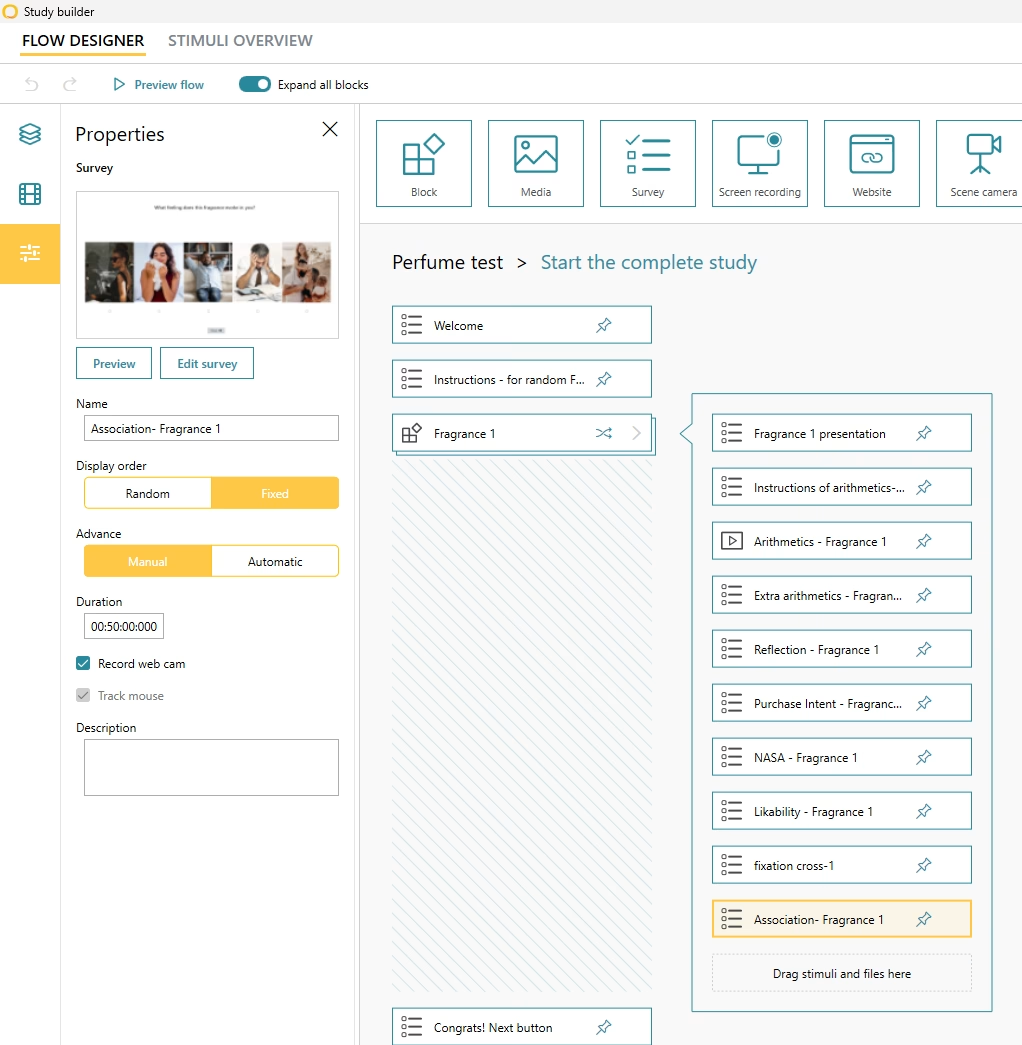
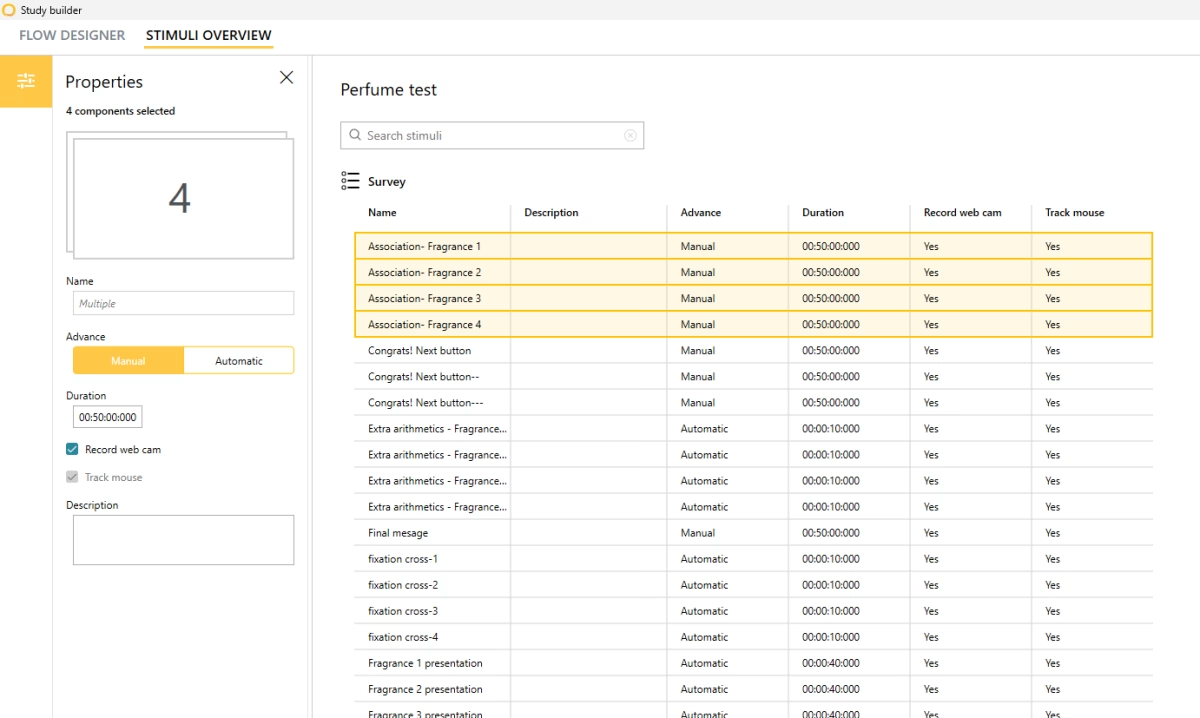
Imagine an experiment with a large number of stimuli. You click Media and batch import all your images at once. Now you want to set the presentation duration for every image, or apply other stimulus properties that should be identical across the board. Rather than adjusting each one individually in the Flow Designer, head to the Stimulus Overview and batch edit them all in one place.
Pro tip: Use the search bar to pull up groups of stimuli that share a name.
2. Find a specific stimulus
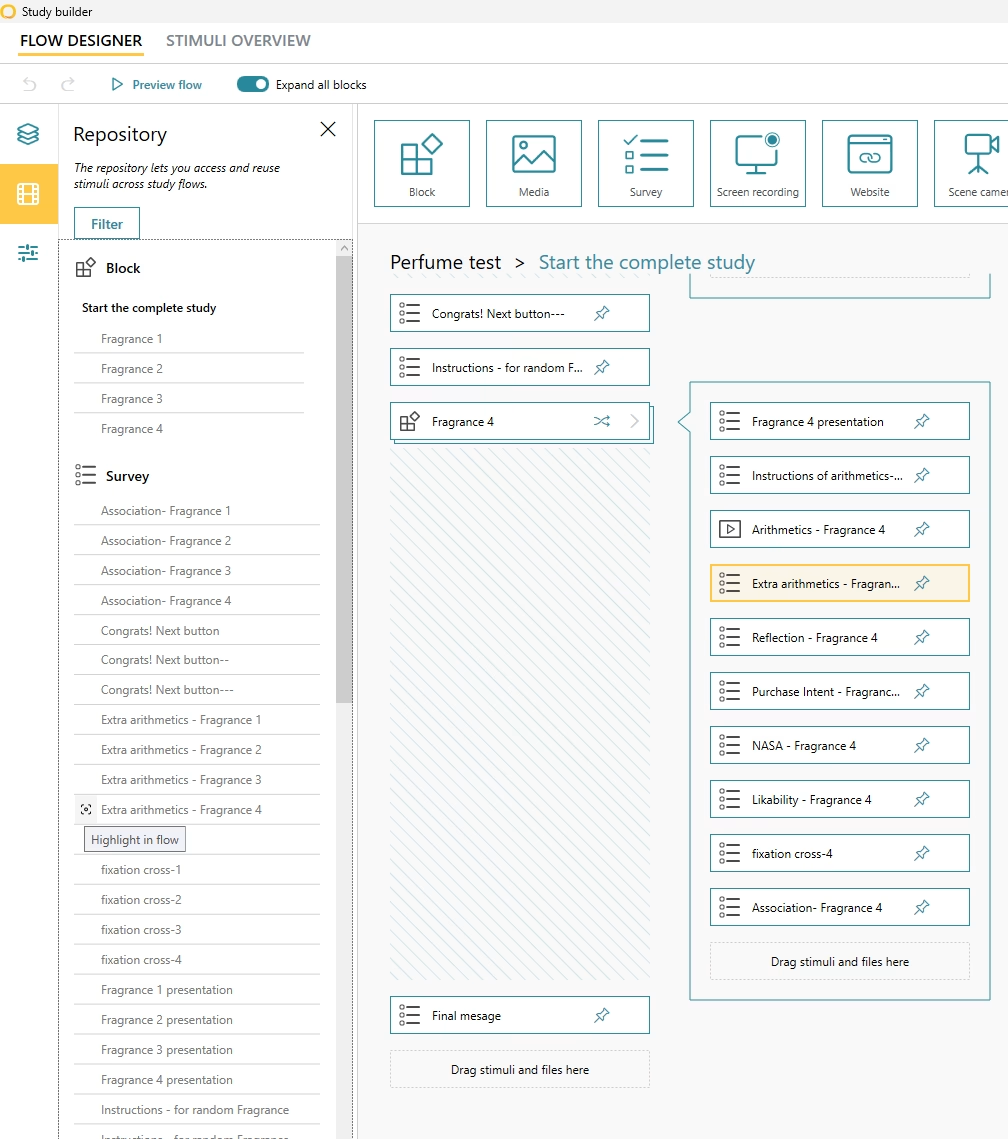
When a study contains many stimuli and you need to locate a particular one within the study flow, use the Highlight in flow function in the Stimulus Repository. It takes you straight to that stimulus in context.
3. Drop stimuli into blocks quickly
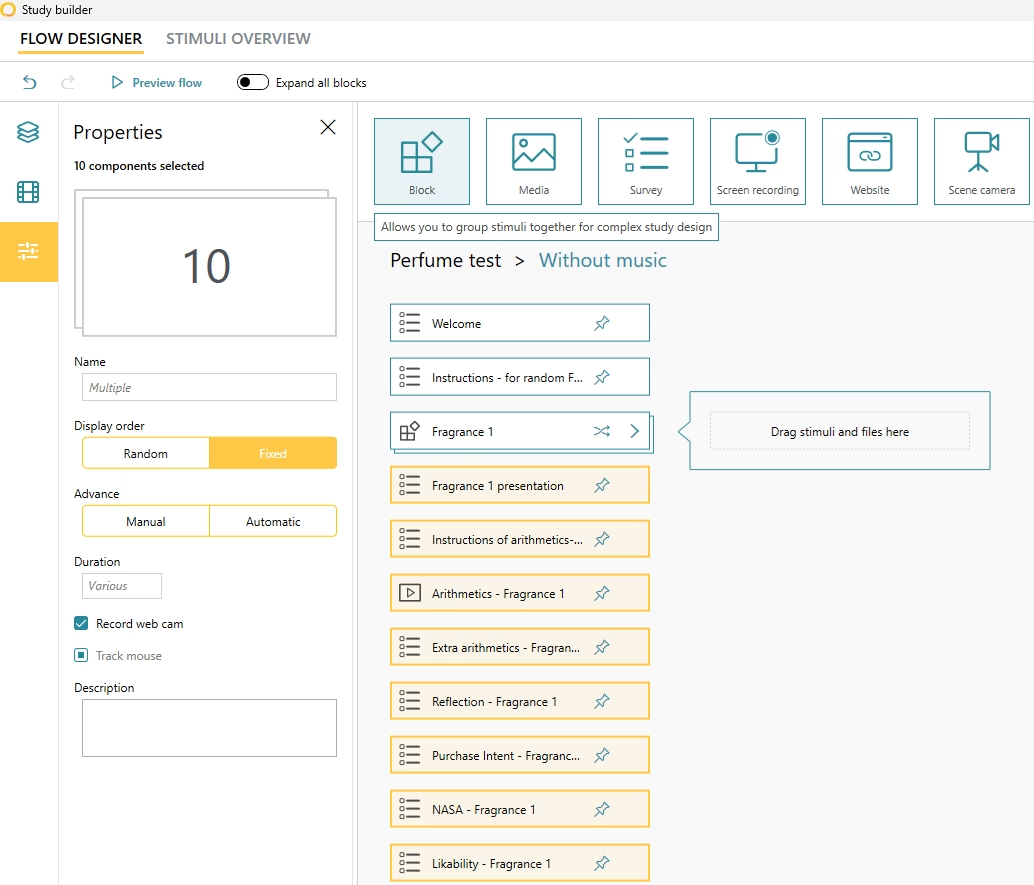
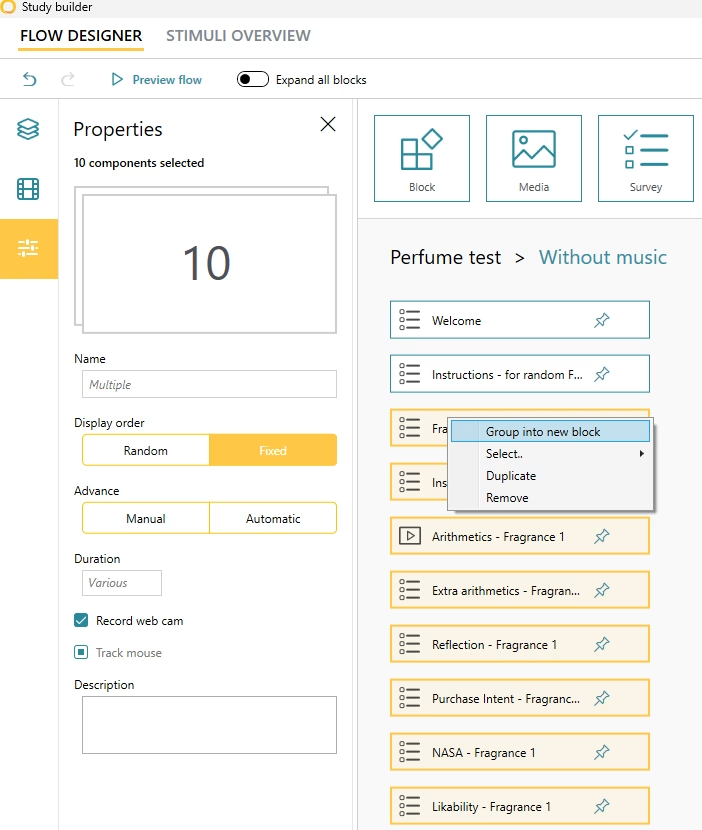
Blocks are the go-to tool for structuring an experiment because they let you group stimuli together. You can create a new block and drag stimuli into it, or simply select your stimuli, right-click, and choose “Group into new block”, using the keyboard shortcut Ctrl + G.
4. Build experiment versions with Study Flows
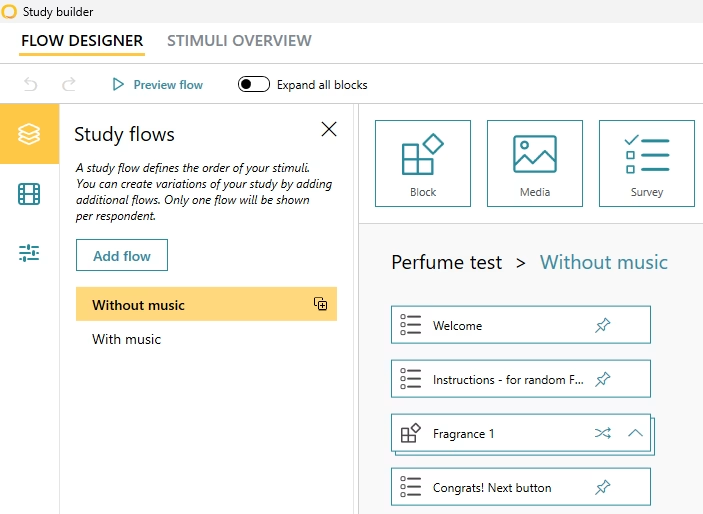
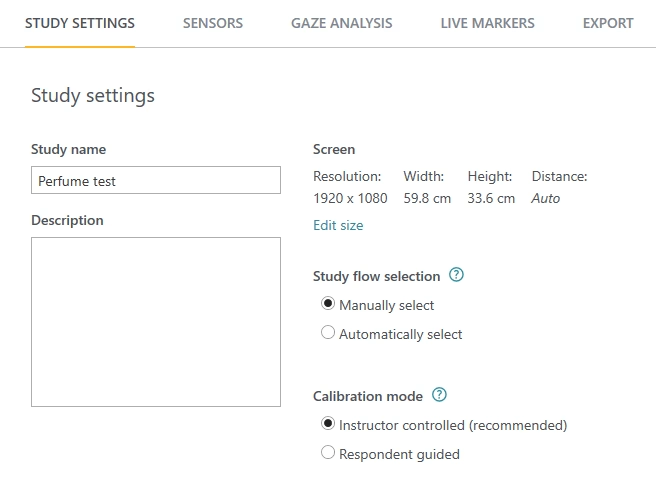
iMotions Lab supports within-subject designs through blocks and randomization. For between-subject designs, use Study Flows to create different versions of your experiment. Each respondent is exposed to one flow, and you can choose to allocate respondents to flows either manually or automatically (randomized).
Stay Tuned For Tips and Tricks Vol. 2
That’s a wrap on Tips and Tricks Vol. 1. Stay tuned for more helpful tips and tricks in the next volume, where we’ll keep sharing the shortcuts that make iMotions Lab work harder for you.