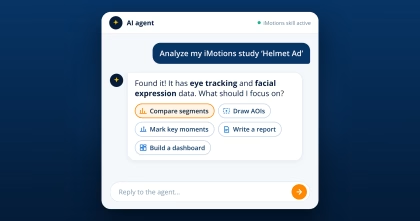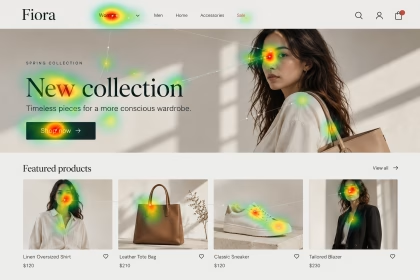
Every iMotions Online user just gained a new team member: a research assistant that knows your studies, writes its own analysis code, and never gets tired of drawing AOIs.
The new iMotions AI skill connects AI agents like Claude directly to your iMotions Online account. Describe what you want in plain language, and the agent does it with your real data: eye tracking, facial expressions, survey answers and all.
Table of Contents
From chatbot to research assistant
Early AI chatbots could only do one thing: text in, text out. Modern AI agents can also act. They search the web, open files, write and run code, and chain those steps into a whole workflow.
A skill is a packaged set of instructions that teaches an agent a specific job. The iMotions skill is a Claude skill (it also works with other agents that support skills). It teaches your agent how iMotions Online works and how to reach the data in your account, so you don’t have to explain it again in every chat. Once it’s installed, the AI agent can read your studies, stimuli, respondents, segments and survey answers, and it can build and edit them too.
Six tasks to delegate to your agent
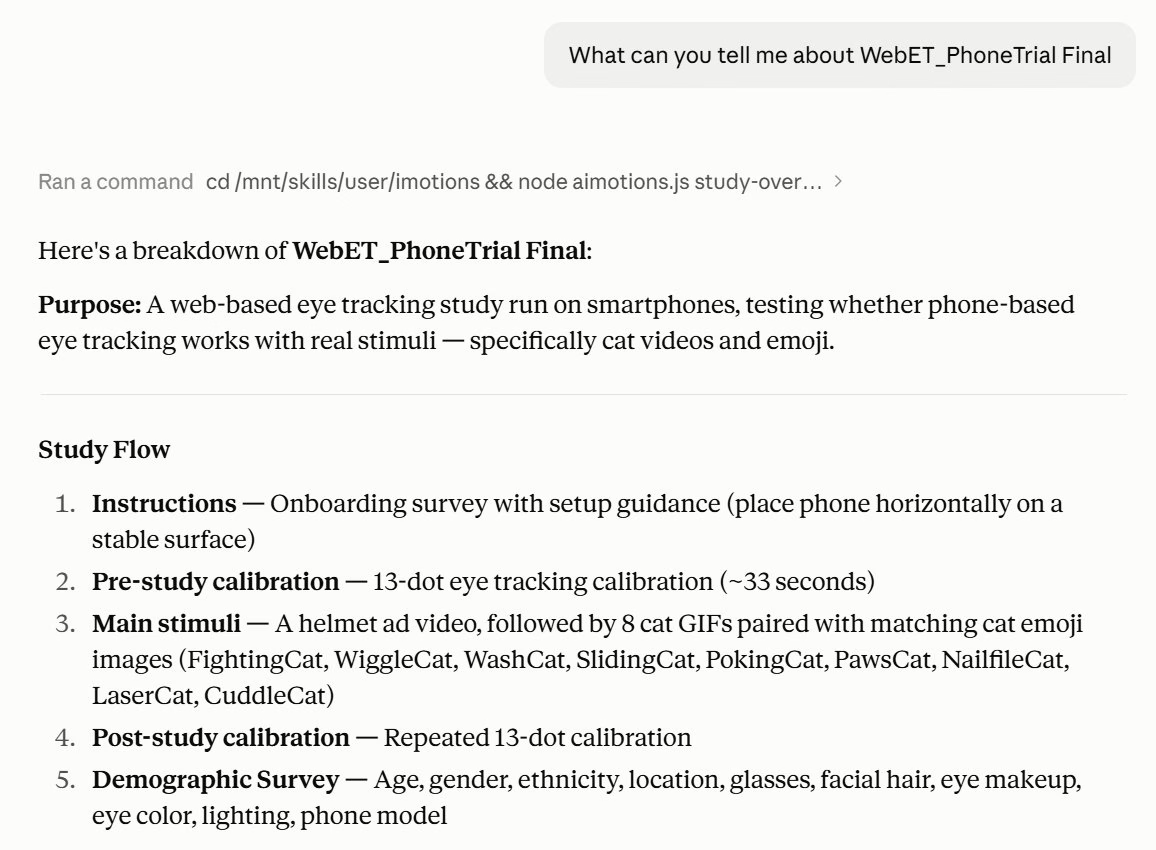
1. Get the big picture of a study in seconds
Ask “What can you tell me about my iMotions study ‘WebET_PhoneTrial’?” and the AI agent reads the study and summarizes its purpose, flow, stimuli and survey, step by step. It’s a fast way to onboard a colleague or check that a complex study is set up the way you intended.
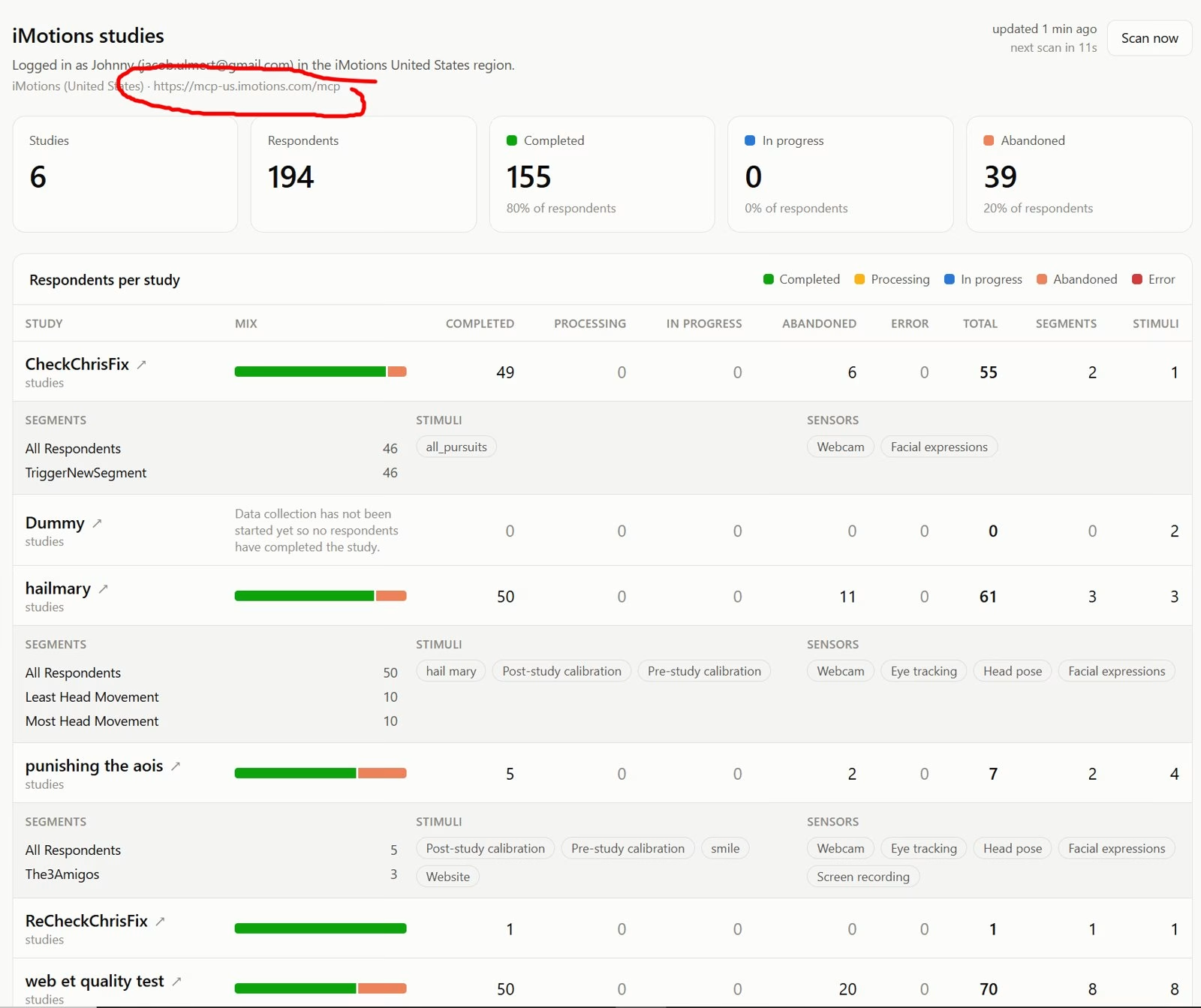
2. Build dashboards that track your fieldwork
One prompt was enough to get a live dashboard that scans every study and shows completed, in-progress and abandoned respondents. Use it to see whether recruitment is on track, whether key segments are represented, and whether a study design is driving drop-outs.
3. Compare segments and studies
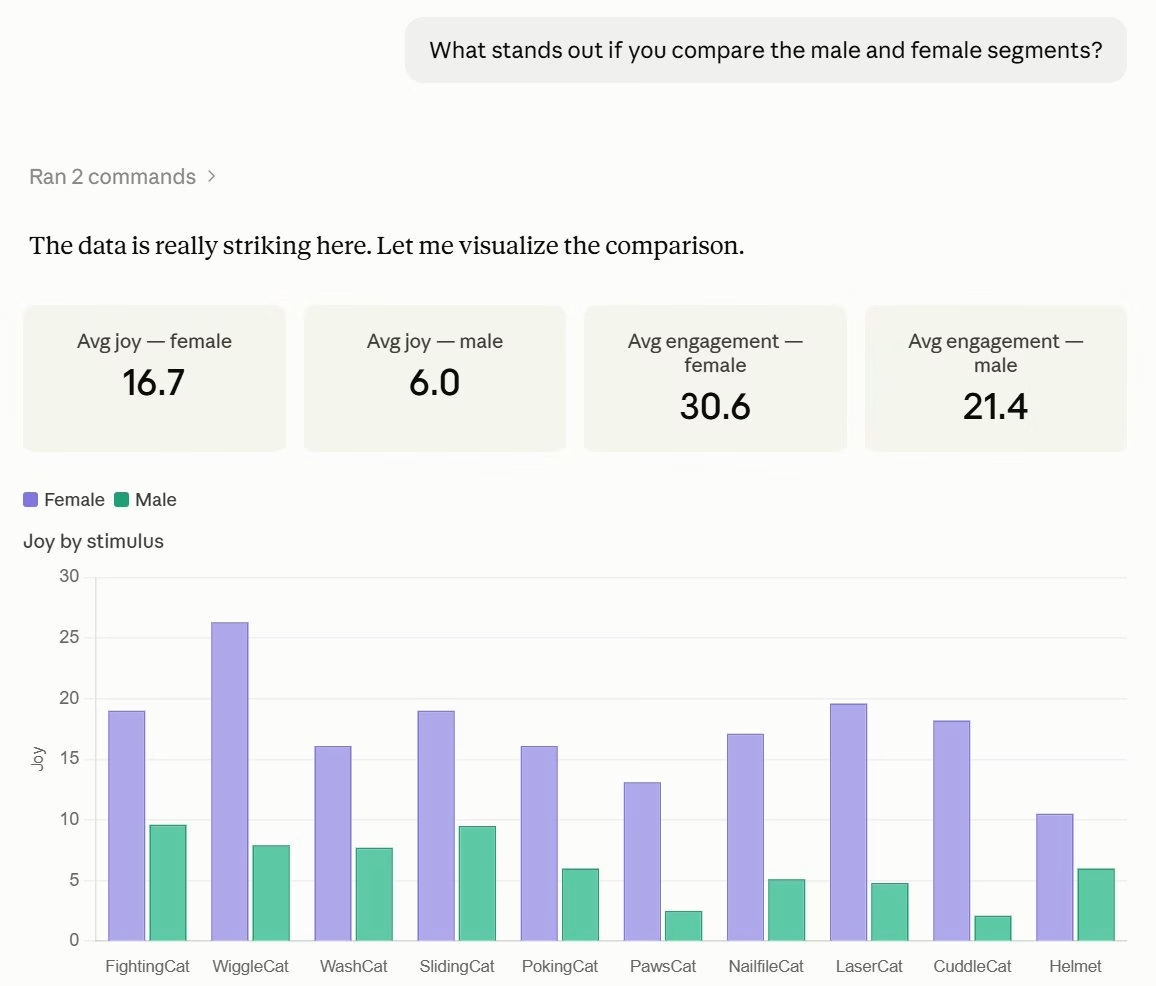
The AI agent compares metrics across stimuli and segments, including AOI and annotation metrics. It can also export signal timelines and eye tracking data as CSV, then run its own statistics. Ask “What stands out if you compare the male and female segments?” and you get the numbers and the chart together. The same works across studies, so you can spot trends over several iterations.
4. Delegate AOIs, annotations and data-quality checks
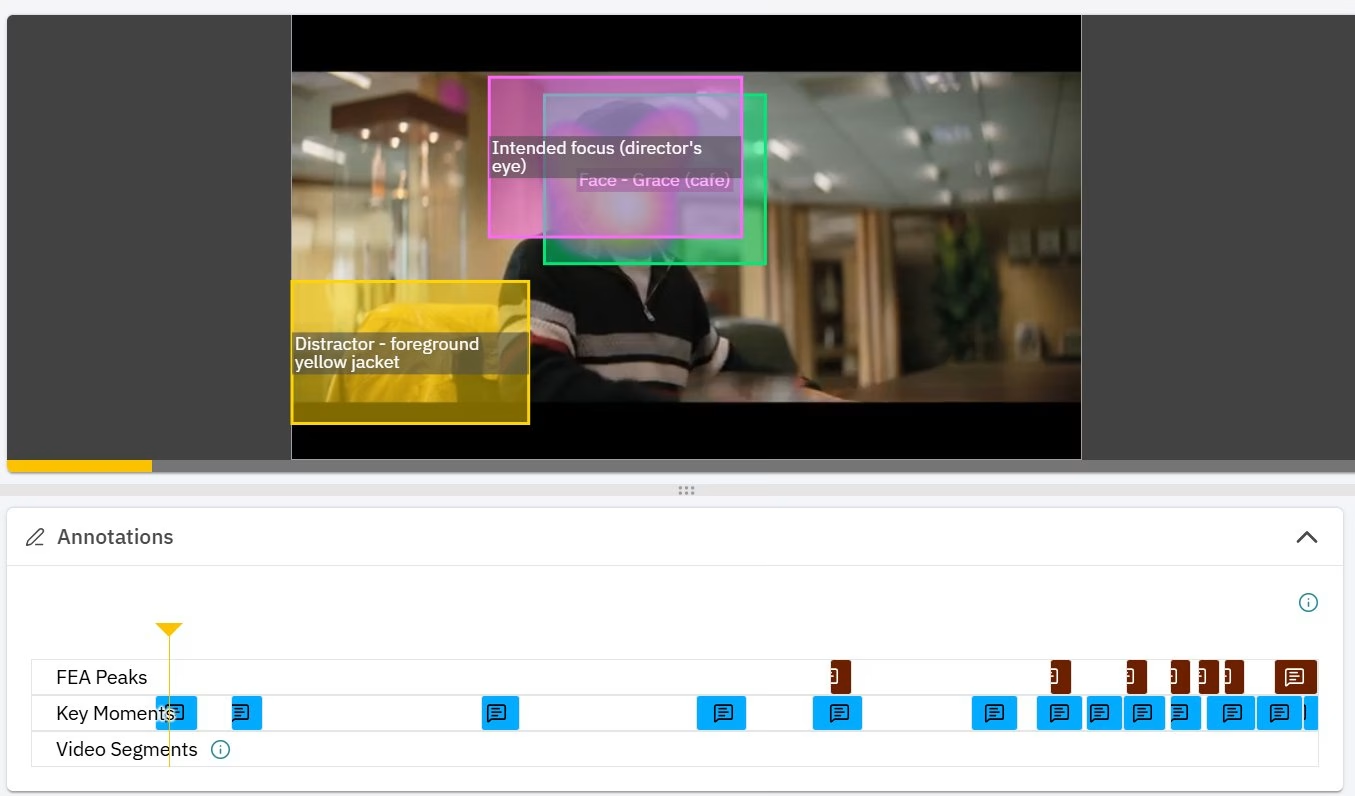
Drawing AOIs and marking key moments is careful, repetitive work. Now you can describe it instead. The AI agent creates and edits AOIs, annotations and segments in your study. It can also turn your quality controls into proof: describe the checks in your design and let it plot the evidence.
5. Create the exact visualization or report you need
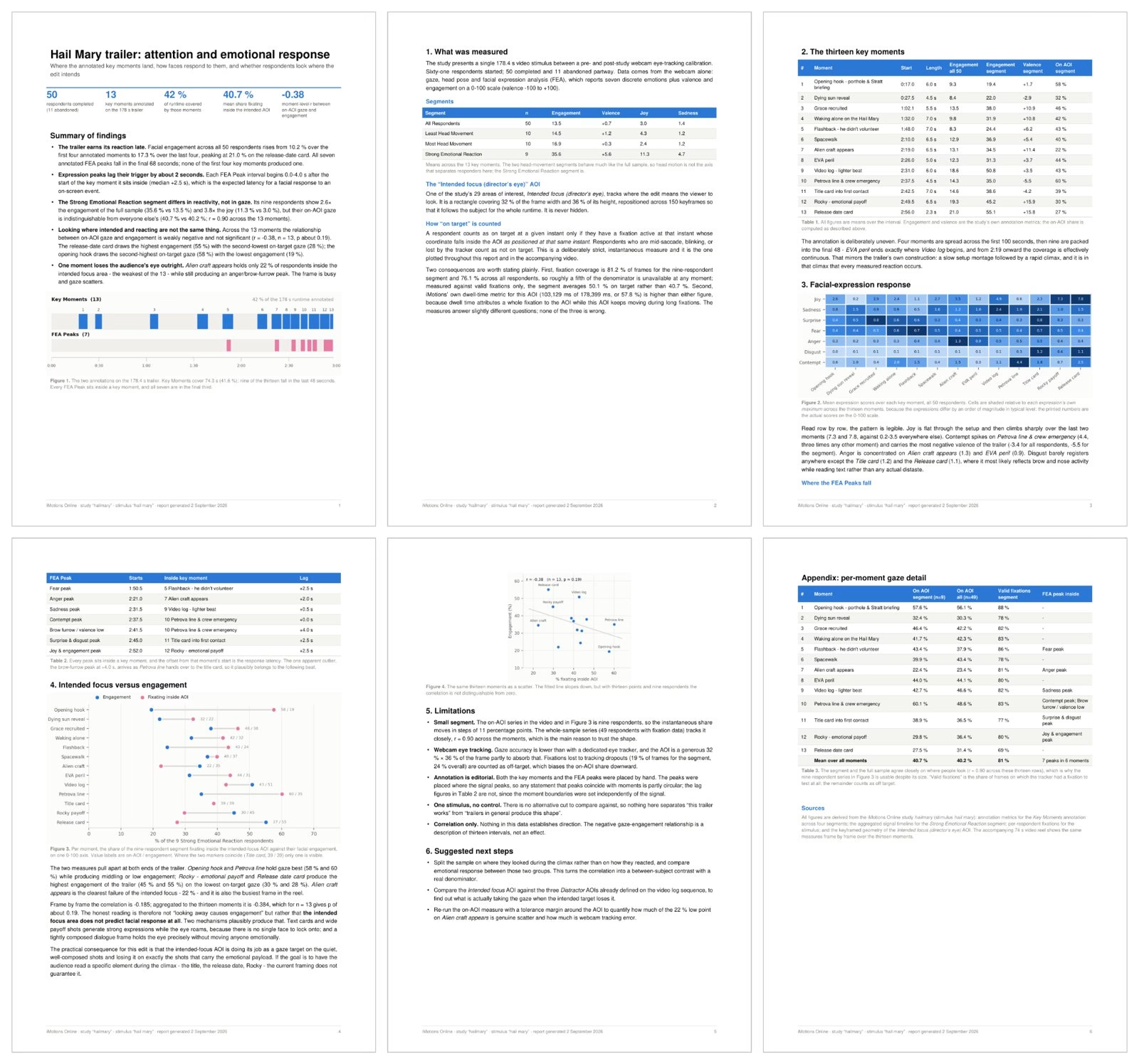
A specific graph, a full dashboard or a video with live data overlay: describe the story you want to tell. The AI agent can also write a complete report with charts that back up each point, for one study or several.
6. Build studies, stimuli and surveys
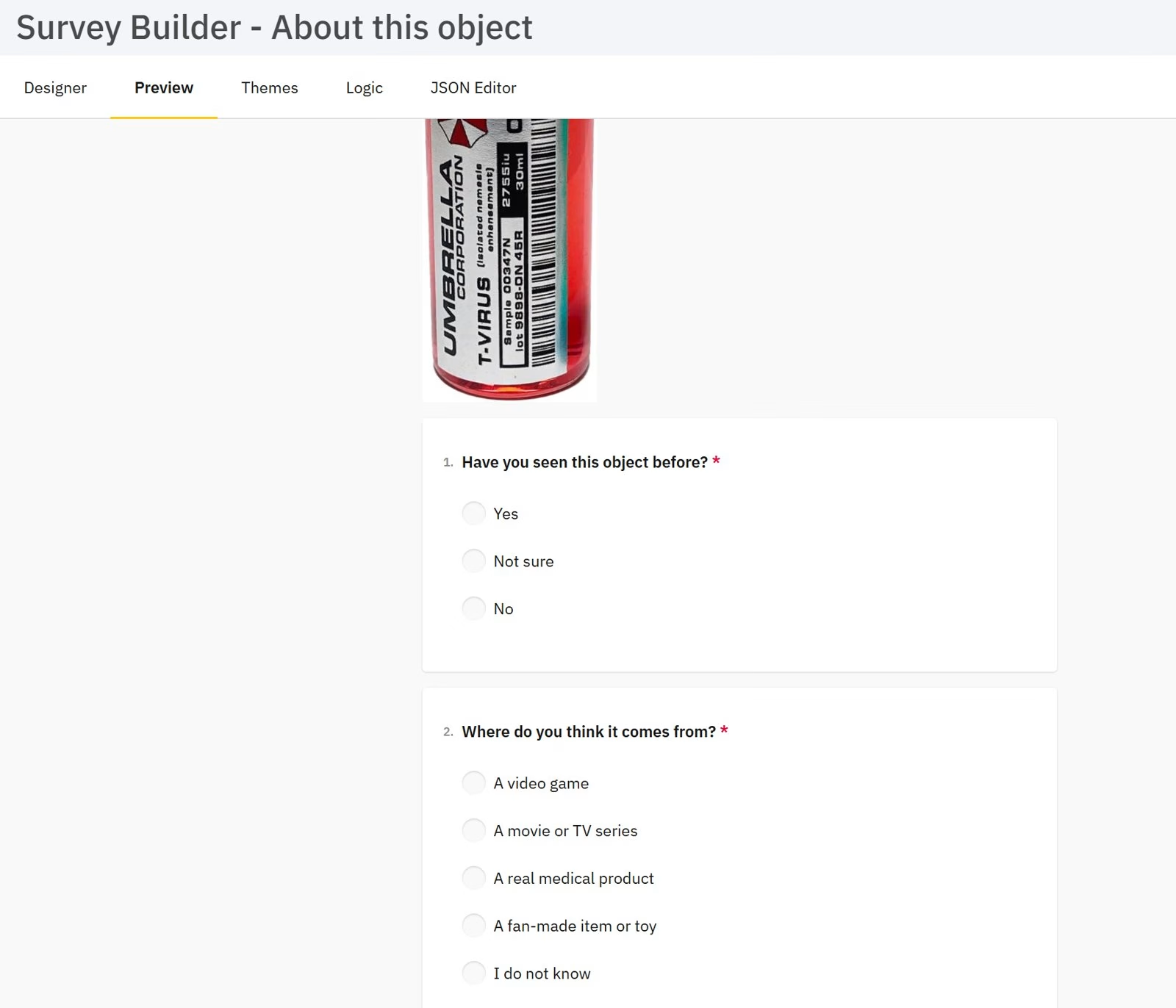
The AI agent creates and edits studies, adds stimuli, and works with blocks, flows, folders and the media library. It also writes survey questions. Try “Create an iMotions study named ‘Ad Campaign Q3’ that compares these three product designs and asks demographic questions in a survey.” It can even build the website, image or video you want to test.
One conversation, start to finish: does the helmet ad work?
Here’s what a real session looks like. We started with a video ad for a helmet, shown to respondents on their phones with webcam eye tracking and facial expression analysis. Then we simply kept asking:
- “Combining only the Helmet video and the Demographic study, do we have any interesting signal data we can explore?”
- “Can you make a segment of the 20 respondents with the highest facial expression peaks?”
- “Can you make annotations in the helmet stimulus when the most interesting things happen, and a separate group of annotations for when the FEA peaks were highest?”
- “Can you combine this with the data on where the respondents are actually looking? Does their gaze gravitate to the well-lit natural light?”
- “Are there any statistically significant conclusions one can draw from this data?”
- “Can we draw conclusions based on age or gender? Remove the respondents with bad data and any complete outliers, then create a segment of the rest.”
- “Can you make a visual with the video playing where all the important numbers and findings are shown live as the video progresses, along with the gaze points?”
- “Can all the text be explained for non-statisticians? Imagine I’m an ad agency presenting these results to the client.”
Eight prompts later, we had new segments and annotations saved in the study, a cleaned dataset, significance tests, and an interactive dashboard that plays the ad with emotion and gaze data in sync. All of it was written in language a client can follow.
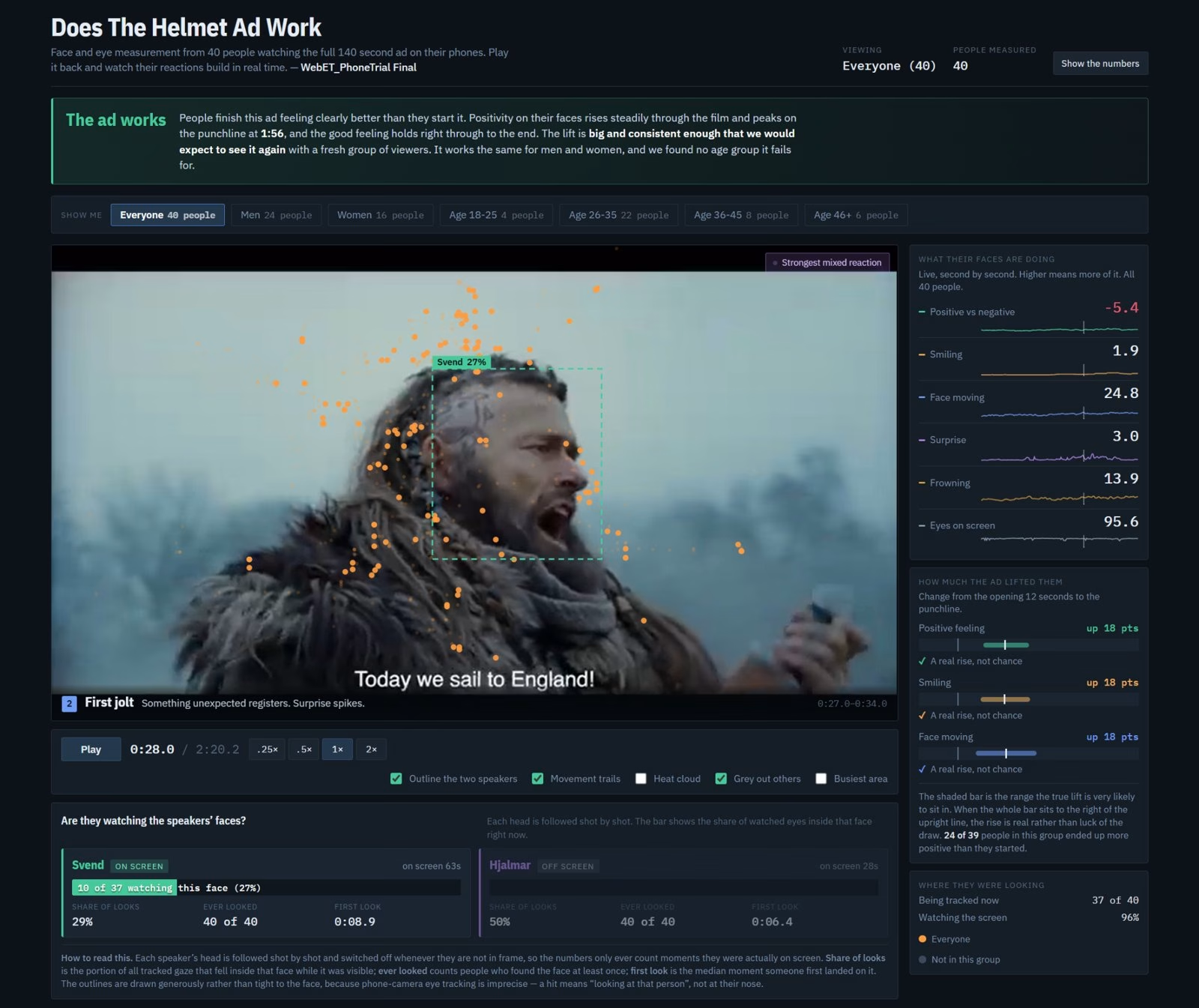
Notice what didn’t happen: no exports, no spreadsheets, no switching between tools. You stay in the conversation and steer, and the AI agent does the legwork. You can also expand any step the agent took to see exactly which data it used.
Bonus: your agent can read the iMotions Help Center
AI models aren’t trained on the iMotions Help Center, so out of the box they can only guess how iMotions works. The skill changes that. Your agent can search the Help Center, including all the iMotions Lab articles, and answer “how do I…?” questions with the actual documentation.
Get started in a few minutes
- Log in to iMotions Online and go to my.imotions.com/#ai.
- Download the iMotions AI skill (a .zip file).
- Install it as a Claude skill. In Claude (claude.ai or the desktop app), turn on code execution, allow the domain *.imotions.com, and upload the .zip under Customize > Skills. Claude Code users can follow the instructions for their system on the same page.
- Start a chat and mention “iMotions study” in your first prompt. The first time, the agent asks you to authorize access to your iMotions account.
The full setup guide is in the Help Center: AI agent integration for iMotions Online.
Tips for great results
- Say “iMotions study” in your first prompt so the agent knows to use the skill.
- Use descriptive names for studies, stimuli, segments and scenes. They help the agent understand your intent.
- Start a new chat for each study or task. Long chats that jump between topics can confuse the agent.
- Remember it’s your own AI account. The skill runs on your AI provider’s plan and tokens, not inside iMotions Online.
Your next study, with a co-pilot
The AI agent won’t replace your judgment as a researcher. It takes the tedious parts off your plate, so you have more time for the questions that matter. Pick a study you know well, install the skill, and ask it something you’ve always wanted to check but never had time for.
Download the iMotions AI skill and tell us what you build with it.